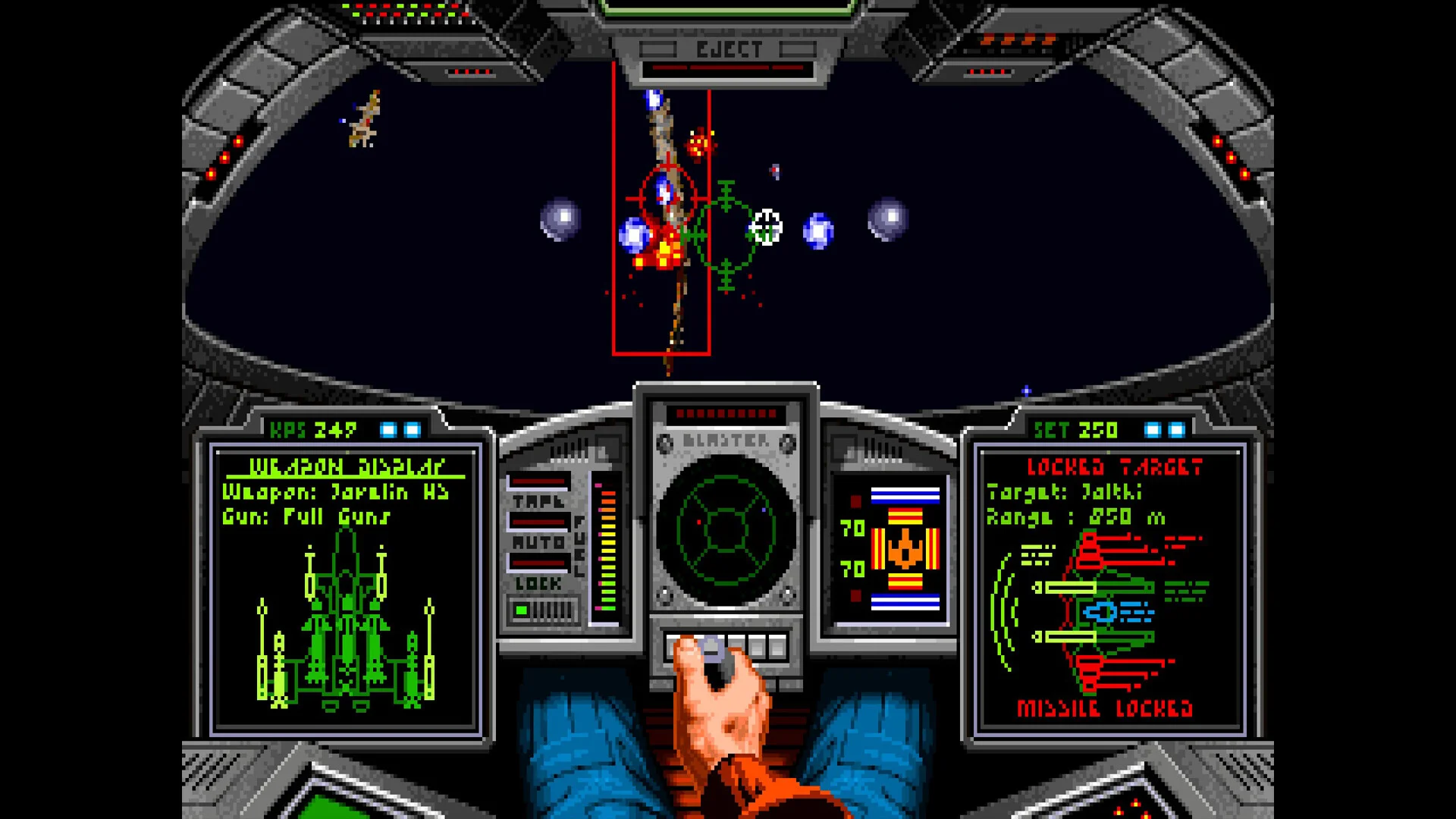
- Wing Commander 35th Anniversary Edition controller support is available, but bindings can vary by release build and platform.
- Steam setup is the best starting point for configuring a modern gamepad and checking detected inputs.
- Historical versions may use different control profiles, especially across DOS, WCAT, Kilrathi Saga, and WCDX builds.
- Steam Deck support is available, though manual remapping or display adjustments may improve the experience.
- Best practice: test flight, throttle, weapons, targeting, and menu controls before starting a campaign.
Wing Commander 35th Anniversary Edition Controller Support Overview
Wing Commander 35th Anniversary Edition controller support is designed to make the classic space combat simulator more practical on modern PCs and handheld devices. The release combines several historical versions, so the exact behavior of a controller can depend on the selected executable, launcher configuration, Steam Input profile, and active compatibility layer.
The Steam listing identifies partial controller support, along with Steam Deck compatibility and Steam Cloud features. This means a gamepad can be used, but players should not assume that every historical control function will be perfectly mapped immediately. Classic flight controls were originally designed around keyboard and joystick input, so a modern controller may require a short setup phase.
| Support Area | Current Guidance | Player Expectation |
|---|---|---|
| Modern gamepad | Supported through the platform and active input profile | May require remapping |
| Steam Input | Useful for custom bindings and controller layouts | Recommended for unusual controls |
| Steam Deck | Supported platform target | Check bindings and display scaling |
| DOS or WCAT build | Classic input assumptions | Keyboard or joystick may feel more natural |
| Kilrathi Saga or WCDX build | Windows-oriented input handling | Often easier to adapt to a gamepad |
| Menu controls | May be handled by the game or platform layer | Test before launching a mission |
Flight Control
Map pitch, yaw, and roll to a stick or directional control. Use a layout that allows precise corrections during formation flying and dogfights.
Combat Control
Assign primary fire, secondary fire, target cycling, and missile functions to buttons that are easy to reach without releasing the flight stick.
Interface Control
Reserve buttons for pause, views, menus, and target management. These functions may differ between historical release families.
Begin with the most modern-compatible build available in the launcher, then test the historical versions only after you understand the basic controller behavior.
Controller Setup Step-by-Step
Use the following process before beginning a serious campaign. It avoids changing several layers at once and makes it easier to identify whether a problem comes from the game, Steam Input, or the selected historical version.
Connect and confirm the controller
Connect the controller before launching the game. Confirm that Windows and Steam recognize it, then check whether the correct controller profile appears in the Steam client. If the device is not detected at this stage, changing in-game bindings will not solve the problem.
Choose the intended historical build
Identify whether you are launching the DOS, WCAT, Kilrathi Saga, or WCDX version. These builds do not necessarily share identical control behavior. Avoid copying a layout from one release family to another without testing it.
Select or create an input profile
Start with the default profile supplied by the platform. If flight axes, throttle, or targeting do not respond correctly, create a custom layout. Map the most important controls first: flight direction, throttle, afterburner, guns, missiles, and target cycling.
Test controls in a safe environment
Use an early mission, simulator-style area, or low-risk sortie to test the layout. Confirm that the fighter turns smoothly, changes speed correctly, fires the intended weapon, and switches targets without unwanted inputs.
Save the profile and document changes
Save the working profile with a clear name that identifies the historical build. Keep separate layouts when using different versions, because a mapping that works for WCDX may not match the DOS or WCAT control structure.
| Setup Stage | What to Test | Why It Matters |
|---|---|---|
| Detection | Controller appears in Steam or Windows | Confirms the device is available |
| Flight | Pitch, yaw, roll, and sensitivity | Determines whether dogfights feel controllable |
| Speed | Throttle and afterburner | Supports pursuit, escape, and formation flying |
| Combat | Guns, missiles, and weapon switching | Prevents accidental or delayed attacks |
| Targeting | Cycle, select, and lock commands | Essential for mixed fighter engagements |
| Interface | Pause, views, and menus | Prevents confusion during missions |
A controller profile created for one historical executable may produce incorrect results in another. Test each build separately and keep a keyboard fallback available.
Recommended Controller Layout and Combat Priorities
A good layout keeps the most frequent actions near the flight controls while placing less common interface functions on secondary buttons. There is no single mandatory arrangement because controller hardware and player preferences differ, but the priority order below works well for a classic space combat simulator.
| Control Group | Suggested Assignment | Priority |
|---|---|---|
| Flight direction | Primary stick or directional flight axis | Essential |
| Throttle | Secondary axis, shoulder buttons, or triggers | Essential |
| Afterburner | Easily reached shoulder button | High |
| Primary guns | Main trigger or face button | Essential |
| Missiles | Secondary trigger or face button | High |
| Target cycling | Shoulder button or face button | Essential |
| Target lock | Nearby button if available | High |
| View change | Secondary face button or stick click | Medium |
| Pause and menu | Menu button or platform command | Essential |
| Wingman or utility commands | Remaining accessible buttons | Medium |
Keep weapon controls separate from target controls whenever possible. During a furball, pressing the wrong button can waste ammunition or interrupt target selection. Missiles should have a distinct input from guns so that a hurried attack does not trigger the wrong weapon.
Flight sensitivity also deserves attention. A highly sensitive stick can make the Hornet or Rapier difficult to aim, while a sluggish profile may reduce the advantage of a nimble fighter. Start with moderate sensitivity, then adjust after testing several turns, pursuit passes, and defensive maneuvers.
Dogfight Layout
Prioritize flight direction, guns, target cycling, and afterburner. This setup suits close-range engagements and quick repositioning.
Escort Layout
Keep throttle and view controls easy to reach. Escort missions demand formation awareness and rapid responses to threats attacking friendly ships.
Heavy Fighter Layout
Place missiles and target lock near the firing controls. The Raptor benefits from deliberate target selection and concentrated attacks.
Handheld Layout
Use Steam Deck or compact-controller buttons sparingly. Favor simple, readable bindings over assigning every historical command.
If you have limited controller buttons, preserve flight, throttle, guns, missiles, target cycling, and pause first. Secondary commands can remain on the keyboard.
Troubleshooting Controller Problems
Controller issues usually come from one of four layers: hardware detection, Steam Input, the selected historical build, or an incorrect axis assignment. Work through the simplest explanation first rather than changing every setting simultaneously.
| Problem | Likely Cause | Practical Fix |
|---|---|---|
| Controller is not detected | Device or Steam profile issue | Reconnect it and verify platform detection |
| Stick moves the wrong direction | Axis inversion or incorrect profile | Reverse the affected axis |
| Flight feels too sensitive | High sensitivity or wrong axis mode | Lower sensitivity and test gradual turns |
| Buttons work in menus only | Gamepad layer is active, but game bindings are missing | Create or select a game-specific profile |
| Throttle does not respond | Unsupported axis or unmapped command | Use shoulder buttons or a separate axis |
| Target cycling is unreliable | Conflicting bindings or repeated input | Assign one button and reduce input repetition |
| Steam Deck controls feel awkward | Default layout does not match the selected build | Remap through Steam Input |
| Keyboard stops responding | Controller profile captures too many inputs | Remove unnecessary keyboard emulation |
Use a clean troubleshooting sequence:
- Confirm the controller works outside the game.
- Verify the active Steam Input profile.
- Check the selected historical executable.
- Test one control group at a time.
- Remove duplicate bindings.
- Save a separate profile after each successful change.
The official Steam store page lists partial controller support and Steam Deck support. The EA product page provides the primary release information, while the GOG edition page is useful for comparing the included Anniversary Edition and Legacy Edition context.
Controller Support Check:
- Confirm the controller is detected before launching the game
- Identify the DOS, WCAT, Kilrathi Saga, or WCDX build
- Test flight, throttle, afterburner, weapons, and targeting
- Save a separate profile for each historical version
- Keep keyboard controls available for menus and uncommon commands
The low hardware requirements make the game suitable for Steam Deck use, but display scaling, controller bindings, and compatibility-tool behavior may still need adjustment.
Controller Support FAQ
Q: Does Wing Commander 35th Anniversary Edition support controllers?
Yes. The Steam release lists partial controller support and Steam Deck compatibility. Because the package includes several historical versions, the quality and completeness of controller mappings can vary by executable and input profile.
Q: Does Wing Commander 35th Anniversary Edition controller support include every command?
Not necessarily. Modern gamepads may not have enough buttons for every historical keyboard command, and some functions may remain easier to use with a keyboard. Map flight, weapons, targeting, throttle, and pause first.
Q: Which version is easiest to configure with a controller?
The Kilrathi Saga or WCDX-style builds may feel more convenient in a modern Windows environment, while DOS and WCAT builds preserve older keyboard and joystick assumptions. Test the build you intend to play rather than relying on one universal profile.
Q: Can I use a controller on Steam Deck?
Yes. Steam Deck support is listed for the release, but players may need to adjust Steam Input bindings, display scaling, or the selected compatibility configuration. Keep a backup layout for menu and targeting functions.
Treat controller setup as part of the first flight check. A stable profile makes targeting, formation flying, and campaign missions much easier to manage.